Solutions · Images
AI image generator for your brand, from your words
Wonib’s image generator makes pictures from your own words, with your brand’s colours added. You describe the picture, choose square, landscape or portrait and how many to make, from one to four, and press “Make the images”. It suits anyone who needs a picture that looks like their brand, without a designer.
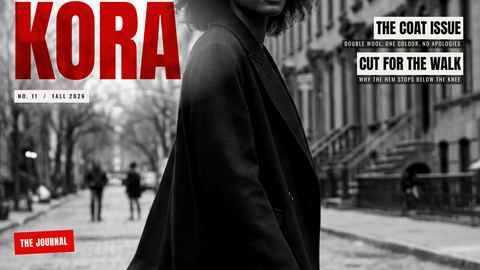
More made with Wonib
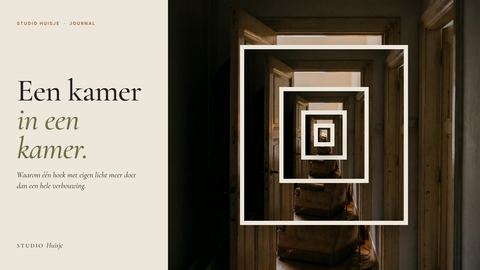
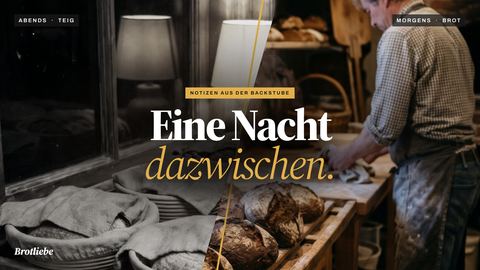
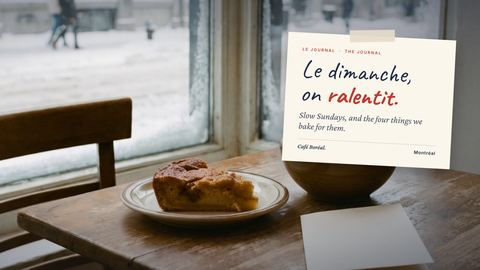
Images at a glance
| What it makes | One to four pictures at a time, from your own words |
|---|---|
| Shapes | Square, landscape or portrait, or Auto |
| File types | PNG, JPEG or WebP, with a transparent background where the model supports it |
| Styles | Auto, photograph, illustration, 3D render or graphic design, where the model supports it |
| For an article | Choose “A blog article” instead: Wonib reads the article first |
How it works
How to make an on-brand picture from your words
- 01
Open Images
In Wonib, open Images and choose “Anything, from my words”. The tool has a second kind, “A blog article”, which reads an article first and makes its hero picture; this page is about pictures you describe yourself.
- 02
Describe the picture
Say what the picture should show in plain words, the way you would brief a photographer or an illustrator. Your words go through as written, and the brand’s colours are added.
- 03
Choose the settings
Choose the picture model, the size and orientation (square, landscape, portrait or auto) and how many pictures to make. Some models also offer a visual style, quality, file format, a transparent background, and a product or style picture to work from.
- 04
Make the images
Press “Make the images”. The button shows what the pictures will take before anything starts. A picture that fails is not charged, and you can make another with the same words or with changed ones.
- 05
Keep, change or share
Download the picture you like, or share it from the Share button: to a connected account, by email, or by a view link. To change it, open it in Canvas to edit it, upscale it or animate it.
What you get
- One to four pictures at a time, from your own words
- Square, landscape or portrait, or let Wonib choose
- The brand’s colours added to every picture
- A choice of picture models, each with the settings it supports
- PNG, JPEG or WebP, with a transparent background where the model supports it
- Canvas to edit, upscale or animate a picture afterwards
Good for
- A picture for a post, a page or a presentation, in the brand’s colours
- Product and campaign pictures when there is no photographer on call
- Trying several ideas for one picture side by side
Not for
- It does not read an article: for a blog article’s hero picture, choose “A blog article” in Images instead
- It does not fill the empty picture boxes in your own PowerPoint, Word or PDF file: that is done from Presentations or Documents
Compared with doing it by hand, or in a general AI chat
By hand you search stock libraries, or brief a designer and wait. A general AI chat tool paints from your prompt too, but the brand is whatever the prompt remembers to say. Here the brand is set once: its colours are added to every picture, and the picture sits in the same place as the brand’s posts, decks and documents.
Questions people ask
How do I write a good description for an AI picture?
Say what is in the picture, where it is and what light it is in, then what to leave out. “A designer’s desk with colour swatches, soft daylight, no text” gives a model much more than “a creative desk”. Short, concrete words work better than long lists of adjectives.
Which shape should I choose?
Square suits most feeds, portrait suits stories and phone screens, and landscape suits web pages, presentations and link previews. Auto lets Wonib pick the shape that fits the description. If the picture will be used in several places, make it in the shape of the most important one first.
Can I use my own product photo?
Yes, with the picture models that take one. Add a product picture, and a style picture if you have one, and the new picture works from them, so the product looks like yours rather than a guess. With other models, describe the product in words.
Can it put my logo or a headline on the picture?
Pictures are made from your words, and picture models do not draw lettering or logos reliably. For a picture with words and a logo laid out in your brand, use Social posts or Documents, which set the text in your brand’s own font over the picture.
How many pictures should I make at once?
Two to four is a good start when you are still finding the idea: seeing a few side by side makes the choice easier. Once you know what works, make one at a time and change the words, so each new picture moves closer to what you want.
Can it make pictures for a blog article?
Yes. In Images, choose “A blog article” and give the article: Wonib reads it and proposes concepts for its hero picture.
Can I change a picture afterwards?
Yes. Open it in Canvas to edit it, upscale it or animate it, or make it again with different words.
Related
Last updated